
标签:centos7+haproxy实现apache负载均衡
Centos7+Haproxy实现Apache负载均衡
说到Linux下的负载均衡,其实有很多服务是可以实现的,比如:haproxy,lvs,nginx,这些服务都可以做负载均衡,而我们今天主要介绍的是Haproxy实现Apache的负载均衡。一般做法是通过Haproxy+Keeplive实现高可用负载均衡的,我们将会在后面的文章介绍。
目的:访问Haproxy自动轮询分配后台服务器
环境介绍:
Hostname:A-S
IP:192.168.5.21
Role:Apache
Hostname:B-S
IP:192.168.5.22
Role:Apache
Hostname:C-S
IP:192.168.5.23
Role:Haproxy
我们先看看安装完默认的Haproxy的配置介绍:
vim /etc/haproxy/haproxy.cfg
#---------------------------------------------------------------------
# Example configuration for a possible web application. See the
# full configuration options online.
#
# http://haproxy.1wt.eu/download/1.4/doc/configuration.txt
#
#---------------------------------------------------------------------
#---------------------------------------------------------------------
# Global settings
#---------------------------------------------------------------------
global
# to have these messages end up in /var/log/haproxy.log you will
# need to:
#
# 1) configure syslog to accept network log events. This is done
# by adding the ‘-r‘ option to the SYSLOGD_OPTIONS in
# /etc/sysconfig/syslog
#
# 2) configure local2 events to go to the /var/log/haproxy.log
# file. A line like the following can be added to
# /etc/sysconfig/syslog
#
# local2.* /var/log/haproxy.log
#
log 127.0.0.1 local2 #日志输出配置,所有日志都记录在本机,通过local2输出
chroot /var/lib/haproxy #改变当前工作目录。
pidfile /var/run/haproxy.pid #所属运行的gid
maxconn 4000 #最大连接数
user haproxy
group haproxy
daemon #以后台形式运行haproxy
# turn on stats unix socket
stats socket /var/lib/haproxy/stats
#---------------------------------------------------------------------
# common defaults that all the ‘listen‘ and ‘backend‘ sections will
# use if not designated in their block
#---------------------------------------------------------------------
defaults
mode http #默认的模式mode { tcp|http|health },tcp是4层,http是7层,health只会返回OK
log global
option httplog
option dontlognull
option http-server-close
option forwardfor except 127.0.0.0/8
option redispatch #当serverId对应的服务器挂掉后,强制定向到其他健康的服务器
retries 3 #两次连接失败就认为是服务器不可用
timeout http-request 10s
timeout queue 1m
timeout connect 10s #连接超时
timeout client 1m #客户端超时
timeout server 1m #服务器超时
timeout http-keep-alive 10s
timeout check 10s #心跳检测超时
maxconn 3000 #默认的最大连接数
#---------------------------------------------------------------------
# main frontend which proxys to the backends
#---------------------------------------------------------------------
frontend main *:5000 #haproxy服务器监听端口
acl url_static path_beg -i /static /images /javascript /stylesheets
acl url_static path_end -i .jpg .gif .png .css .js
use_backend static if url_static
default_backend app
#---------------------------------------------------------------------
# static backend for serving up images, stylesheets and such
#---------------------------------------------------------------------
backend static
balance roundrobin
#banlance roundrobin 轮询,balance source 保存session值,支持static-rr,leastconn,first,uri等参数
server static 127.0.0.1:4331 check
#---------------------------------------------------------------------
# round robin balancing between the various backends
#---------------------------------------------------------------------
backend app
balance roundrobin
server app1 127.0.0.1:5001 check
server app2 127.0.0.1:5002 check
server app3 127.0.0.1:5003 check
server app4 127.0.0.1:5004 check
接下来我们开始正式环境配置介绍:首先是安装Apache服务,然后配置显示页面:
Yum install httpd
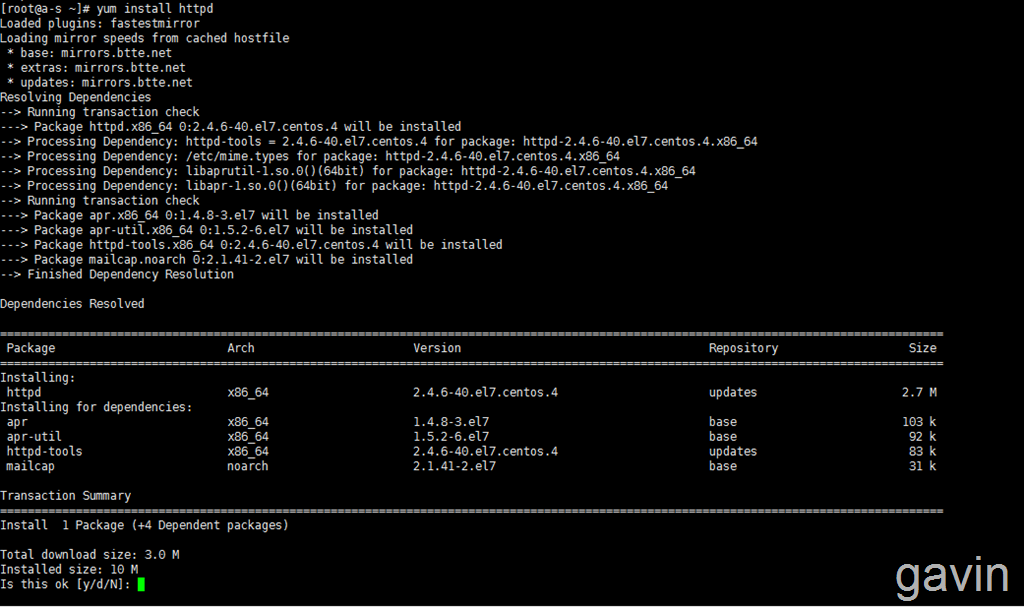
安装完成
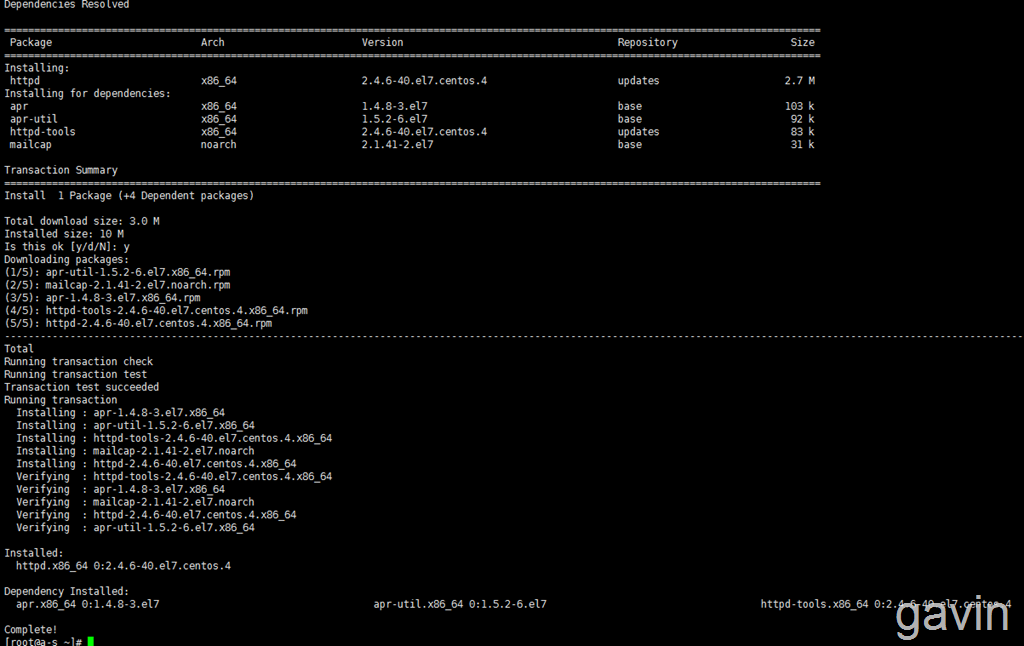
查看httpd 版本

接下来我们首先要为apache定义一个 默认的页面,方便区分
Vim /var/www/httml/index.html
</html>
<!DOCTYPE html>
<html>
<head>
<title>Welcome to Apache</title>
<style>
body {
35em;
margin: 0 auto;
font-family: Tahoma, Verdana, Arial, sans-serif;
}
</style>
<style type="text/css">
h1{color:red}
h2{color:blue}
h3{color:green}
h4{color:yellow}
}
</style>
</head><body bgcolor=‘#46A3FF‘>
<h1>Welcome to A-S Apache</h1>
<h2>HostName:A-S</h2>
<h3>IP:192.168.5.21</h3>
<h4>Service:Apache</h4>
<input type=button value="Refresh" onclick="window.location.href(‘http://192.168.5.21‘)">
</body>
</html>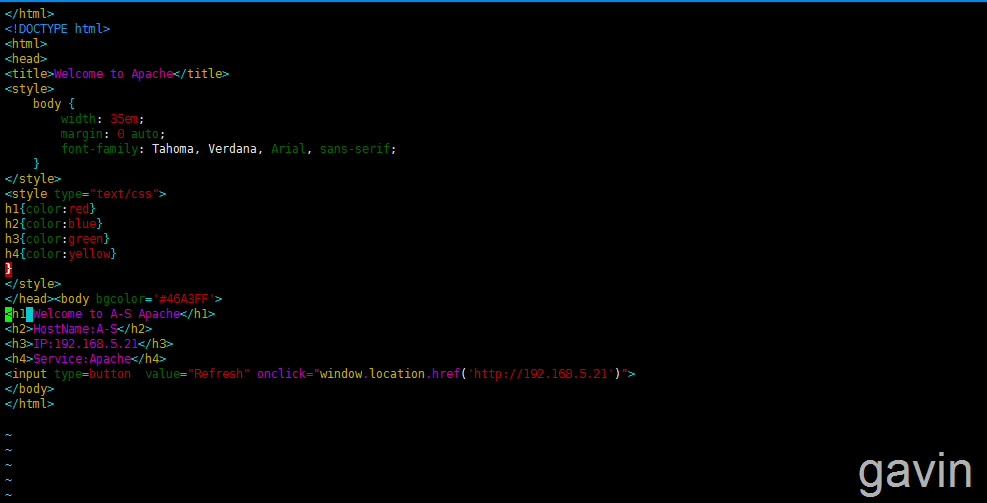
启动服务
Systemctl start httpd
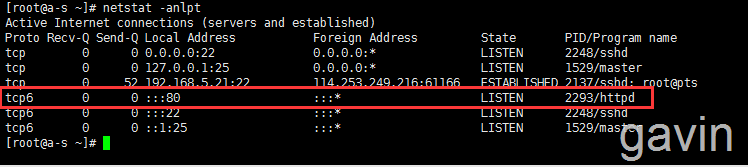
然后添加默认的防火墙端口8o
Firewall-cmd --zone=public --add-port=‘80/tcp‘ --permanent

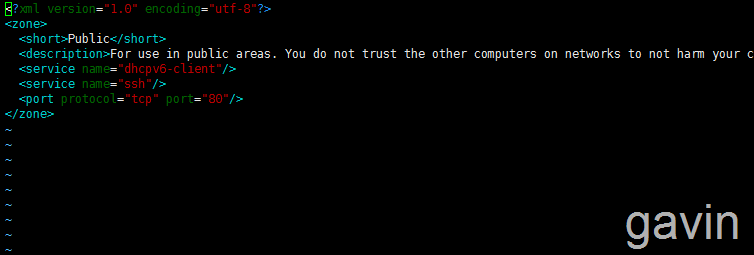
或者vim /etc/firewalld/zone/public.xml
添加一下格式
<port portocal=‘tcp‘ port=‘80‘>
接下来我们在本地访问测试一下
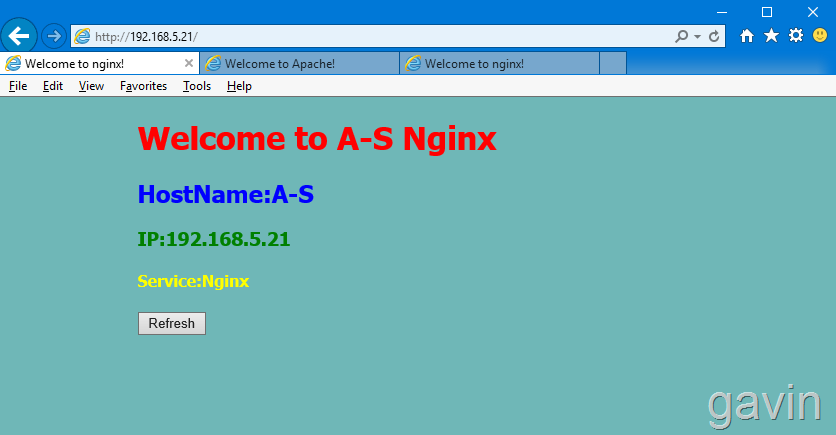
接下来我们也同样按照方法部署第二台apache服务,方法跟上面完全一样
</html>
<!DOCTYPE html>
<html>
<head>
<title>Welcome to Apache</title>
<style>
body {
35em;
margin: 0 auto;
font-family: Tahoma, Verdana, Arial, sans-serif;
}
</style>
<style type="text/css">
h1{color:red}
h2{color:blue}
h3{color:green}
h4{color:yellow}
}
</style>
</head><body bgcolor=‘#CA8EFF‘>
<h1>Welcome to B-S Apache</h1>
<h2>HostName:B-S</h2>
<h3>IP:192.168.5.22</h3>
<h4>Service:Apache</h4>
<input type=button value="Refresh" onclick="window.location.href(‘http://192.168.5.22‘)">
</body>
</html>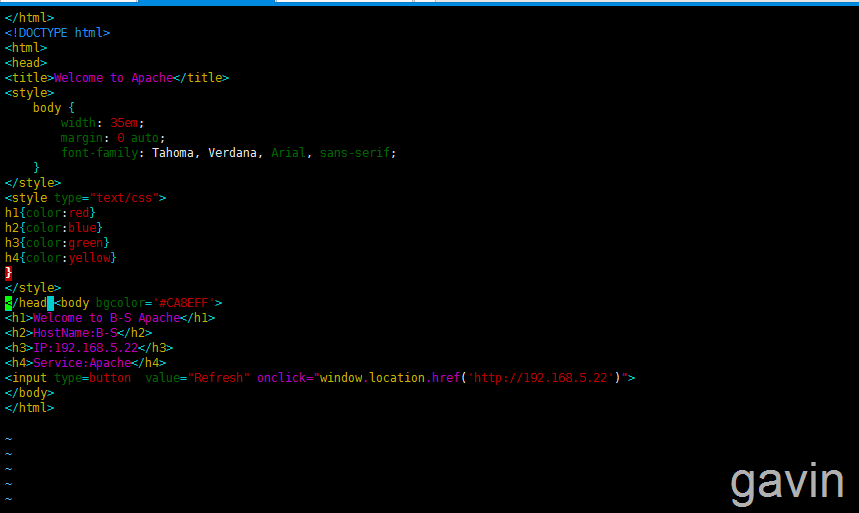
测试访问
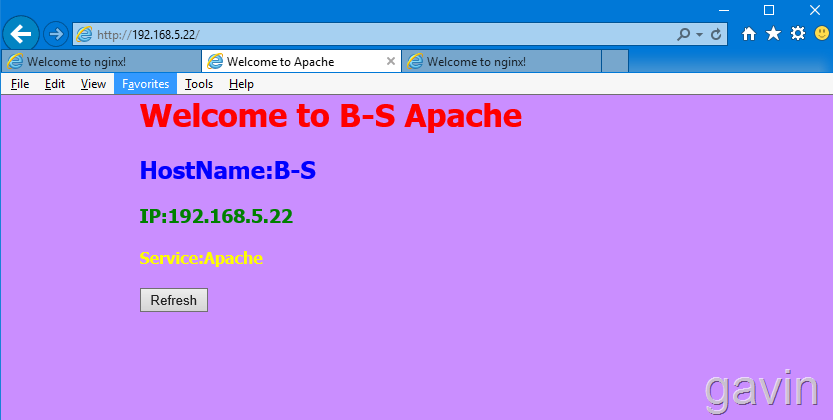
最后我们开始部署haproxy了
我们使用192.168.5.33来部署haproxy了
yum install -y haproxy
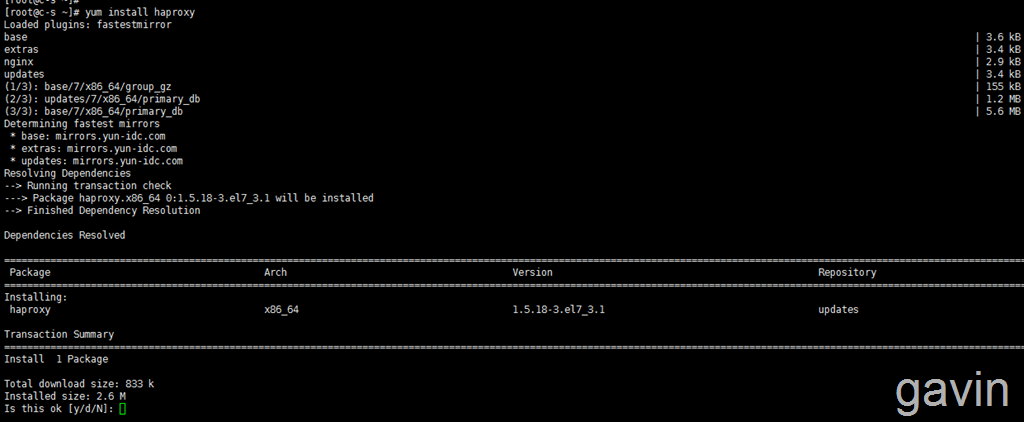
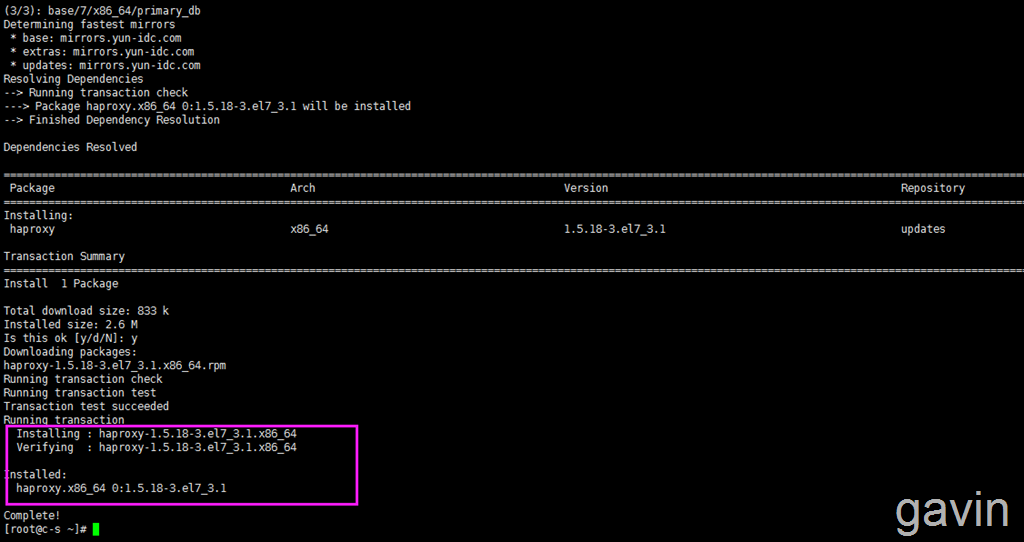
我们可以编辑haproxy的默认配置文件
vim /etc/haproxy/haproxy.nfg

#---------------------------------------------------------------------
# Example configuration for a possible web application. See the
# full configuration options online.
#
# http://haproxy.1wt.eu/download/1.4/doc/configuration.txt
#
#---------------------------------------------------------------------
#---------------------------------------------------------------------
# Global settings
#---------------------------------------------------------------------
global
# to have these messages end up in /var/log/haproxy.log you will
# need to:
#
# 1) configure syslog to accept network log events. This is done
# by adding the ‘-r‘ option to the SYSLOGD_OPTIONS in
# /etc/sysconfig/syslog
#
# 2) configure local2 events to go to the /var/log/haproxy.log
# file. A line like the following can be added to
# /etc/sysconfig/syslog
#
# local2.* /var/log/haproxy.log
#
log 127.0.0.1 local2
chroot /var/lib/haproxy
pidfile /var/run/haproxy.pid
maxconn 4000
user haproxy
group haproxy
daemon
# turn on stats unix socket
stats socket /var/lib/haproxy/stats
#---------------------------------------------------------------------
# common defaults that all the ‘listen‘ and ‘backend‘ sections will
# use if not designated in their block
#---------------------------------------------------------------------
defaults
mode http
log global
option httplog
option dontlognull
option http-server-close
option forwardfor except 127.0.0.0/8
option redispatch
retries 3
timeout http-request 10s
timeout queue 1m
timeout connect 10s
timeout client 1m
timeout server 1m
timeout http-keep-alive 10s
timeout check 10s
maxconn 3000
#---------------------------------------------------------------------
# main frontend which proxys to the backends
#---------------------------------------------------------------------
frontend main *:5000
acl url_static path_beg -i /static /images /javascript /stylesheets
acl url_static path_end -i .jpg .gif .png .css .js
use_backend static if url_static
default_backend app
#---------------------------------------------------------------------
# static backend for serving up images, stylesheets and such
#---------------------------------------------------------------------
backend static
balance roundrobin
server static 127.0.0.1:4331 check
#---------------------------------------------------------------------
# round robin balancing between the various backends
#---------------------------------------------------------------------
backend app
balance roundrobin
server app1 127.0.0.1:5001 check
server app2 127.0.0.1:5002 check
server app3 127.0.0.1:5003 check
server app4 127.0.0.1:5004 check
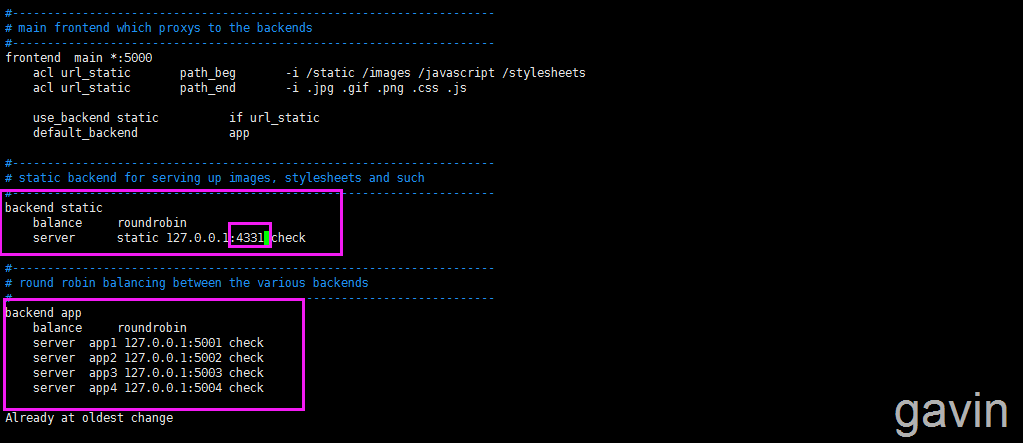
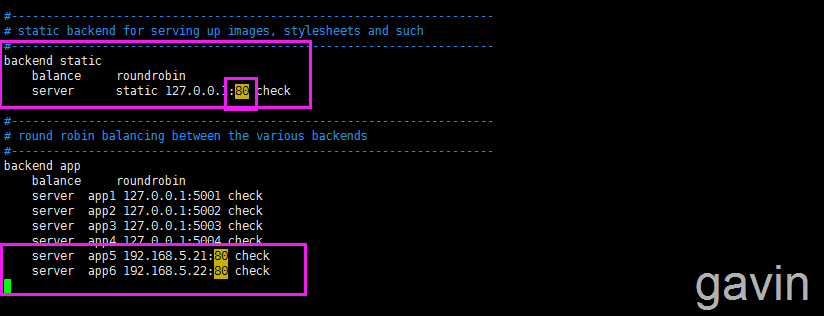
我们在配置文件的最后面,将默认的端口从4331修改成80
然后添加服务器
更改前
更改后
#---------------------------------------------------------------------
# Example configuration for a possible web application.  See the
# full configuration options online.
#
#   http://haproxy.1wt.eu/download/1.4/doc/configuration.txt
#
#---------------------------------------------------------------------
#---------------------------------------------------------------------
# Global settings
#---------------------------------------------------------------------
global
    # to have these messages end up in /var/log/haproxy.log you will
    # need to:
    #
    # 1) configure syslog to accept network log events.  This is done
    #    by adding the ‘-r‘ option to the SYSLOGD_OPTIONS in
    #    /etc/sysconfig/syslog
    #
    # 2) configure local2 events to go to the /var/log/haproxy.log
    #   file. A line like the following can be added to
    #   /etc/sysconfig/syslog
    #
    #    local2.*                       /var/log/haproxy.log
    #
    log         127.0.0.1 local2
    chroot      /var/lib/haproxy
    pidfile     /var/run/haproxy.pid
    maxconn     4000
    user        haproxy
    group       haproxy
    daemon
    # turn on stats unix socket
    stats socket /var/lib/haproxy/stats
#---------------------------------------------------------------------
# common defaults that all the ‘listen‘ and ‘backend‘ sections will
# use if not designated in their block
#---------------------------------------------------------------------
defaults
    mode                    http
    log                     global
    option                  httplog
    option                  dontlognull
    option http-server-close
    option forwardfor       except 127.0.0.0/8
    option                  redispatch
    retries                 3
    timeout http-request    10s
    timeout queue           1m
    timeout connect         10s
    timeout client          1m
    timeout server          1m
    timeout http-keep-alive 10s
    timeout check           10s
    maxconn                 3000
#---------------------------------------------------------------------
# main frontend which proxys to the backends
#---------------------------------------------------------------------
frontend  main *:80
    acl url_static       path_beg       -i /static /images /javascript /stylesheets
    acl url_static       path_end       -i .jpg .gif .png .css .js
    use_backend static          if url_static
    default_backend             app
#---------------------------------------------------------------------
# static backend for serving up images, stylesheets and such
#---------------------------------------------------------------------
backend static
    balance     roundrobin
    server      static 127.0.0.1:80 check
#---------------------------------------------------------------------
# round robin balancing between the various backends
#---------------------------------------------------------------------
backend app
    balance     roundrobin
    server  app1 127.0.0.1:5001 check
    server  app2 127.0.0.1:5002 check
    server  app3 127.0.0.1:5003 check
    server  app4 127.0.0.1:5004 check
    server  app5 192.168.5.21:80 check
    server  app6 192.168.5.22:80 check
然后启动haproxy服务
systemctl start haproxy

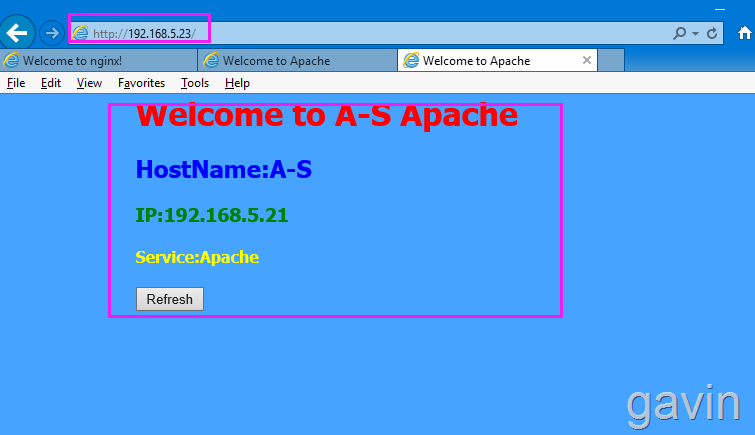
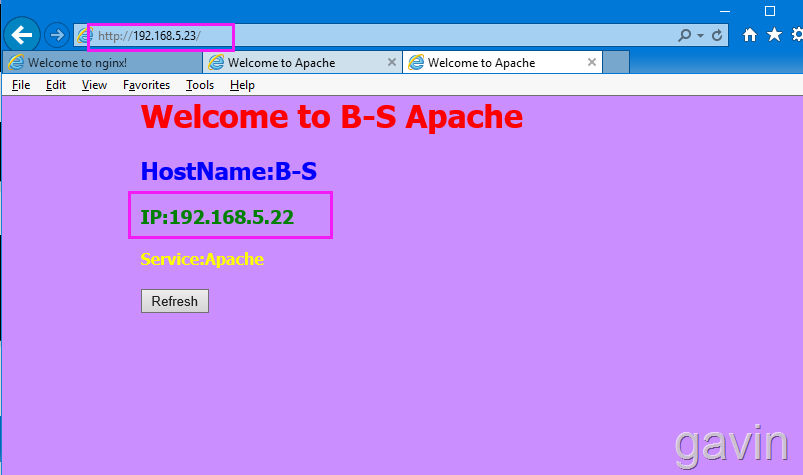
然后测试访问haproxy访问

我们通过本地查看端口监听状态
netstat -anlpt
我们发现默认的端口是5000
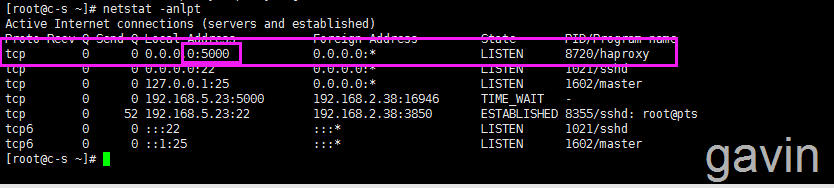
我们使用5000端口在访问一下

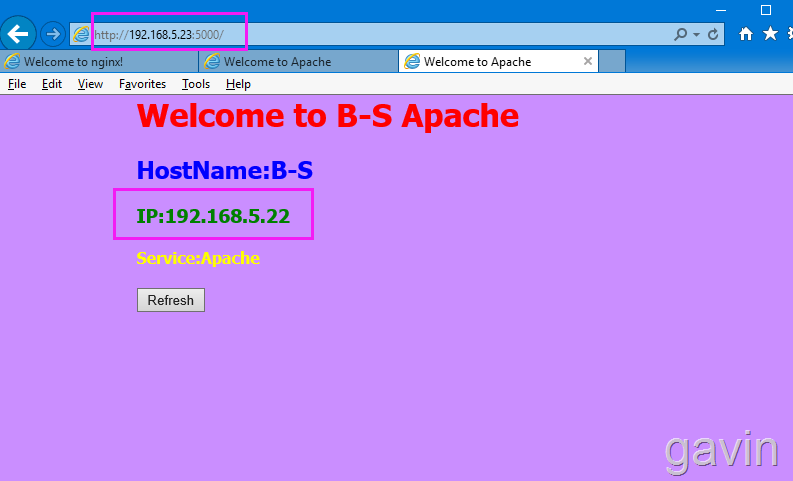
接下来我们更改默认端口
vim /etc/haproxy/haproxy.cfg
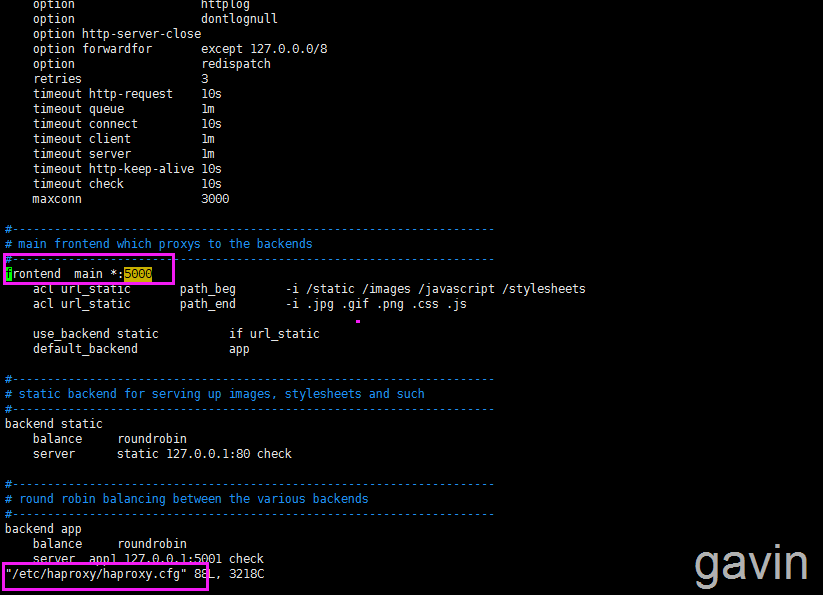
修改为80

修改后我们重启

我们查看端口监听状态
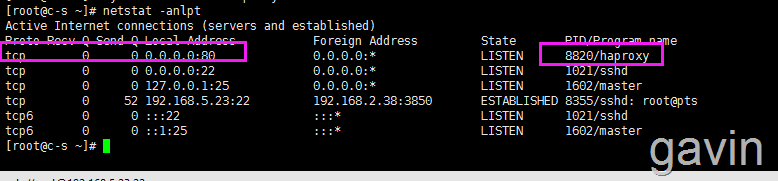
测试访问
本文出自 “高文龙” 博客,谢绝转载!
标签:centos7+haproxy实现apache负载均衡
原文地址:http://gaowenlong.blog.51cto.com/451336/1883159
