
标签:
基本效果:
效果图:

html代码:
<div id="tab">
    <div title="tab1" >
        <p>tab1</p>
    </div>
    <div title="tab2">
        <p>tab2</p>
    </div>
    <div title="tab3">
        <p>tab3</p>
    </div>
</div>
JS代码:
$(function () {
    $(‘#tab‘).tabs({
        width:400,//宽
        height: 200,//高
    })
})
左右调换选项卡:
效果:

HTML代码:
<div id="tab">
    <div title="tab1" >
        <p>tab1</p>
    </div>
    <div title="tab2">
        <p>tab2</p>
    </div>
    <div title="tab3">
        <p>tab3</p>
    </div>
</div>
JS代码:
$(function () {
    $(‘#tab‘).tabs({
        width:400,//宽
        height: 200,//高
        tabWidth: 200,//设置选项卡按钮的款
        tabheigth: 50,//设置选项卡按钮的高
    })
})
右上角图标:
效果:

html代码:
<div id="tab">
    <div title="tab1" >
        <p>tab1</p>
    </div>
    <div title="tab2">
        <p>tab2</p>
    </div>
    <div title="tab3">
        <p>tab3</p>
    </div>
</div>
JS代码:
$(function () {
    $(‘#tab‘).tabs({
        width:400,//宽
        height: 200,//高
        selected:1,//初始化选择哪个选项卡
        tools: [{
            iconCls: ‘icon-add‘,
            handler: function () {
                alert("add");
            }
        }, {
            iconCls: ‘icon-search‘,
            handler: function () {
                alert("search");
            }
        }]
    })
})
添加新选项卡:
效果:

html代码:
<div id="tab">
    <div title="tab1" >
        <p>tab1</p>
    </div>
    <div title="tab2">
        <p>tab2</p>
    </div>
    <div title="tab3">
        <p>tab3</p>
    </div>
</div>
JS代码:
$(function () {
    $(‘#tab‘).tabs({
        width:400,//宽
        height: 200,//高
        selected: 0,//初始化选择哪个选项卡
        tools: [{
            iconCls: ‘icon-add‘,
            handler: function () {
                $(‘#tab‘).tabs(‘add‘,{
                    title: ‘新添加‘,
                    content: ‘新内容‘,
                    closable: true,//是否显示删除按钮
                })
            }
        }]
    })
})
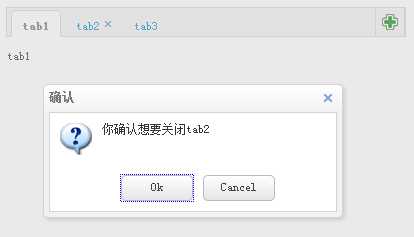
取消选项卡时提示是否关闭:
效果:
------------------------------------------------------------
-------------------------------------------------------------

html代码:
<div id="tab">
    <div title="tab1" >
        <p>tab1</p>
    </div>
    <div title="tab2" data-options ="closable:true">
        <p>tab2</p>
    </div>
    <div title="tab3">
        <p>tab3</p>
    </div>
</div>
JS代码:
$(function () {
    $(‘#tab‘).tabs({
        width:400,//宽
        height: 200,//高
        selected: 0,//初始化选择哪个选项卡
        tools: [{
            iconCls: ‘icon-add‘,
            handler: function () {
                $(‘#tab‘).tabs(‘add‘,{
                    title: ‘新添加‘,
                    content: ‘新内容‘,
                    closable: true,//是否显示删除按钮
                })
            }
        }],
        onBeforeClose: function (title, index) {//判断是否关闭
            var target = this;
            $.messager.confirm(‘确认‘, ‘你确认想要关闭‘ + title, function (r) {
                if (r) {
                    var opts = $(target).tabs(‘options‘);
                    var bc = opts.onBeforeClose;
                    opts.onBeforeClose = function () { };  // 允许现在关闭
                    $(target).tabs(‘close‘, index);
                    opts.onBeforeClose = bc;  // 还原事件函数
                }
            });
            return false;    // 阻止关闭
        }
    })
})
标签:
原文地址:http://www.cnblogs.com/KTblog/p/4874768.html
